Online Help
Here are the steps to register for the Institut de la statistique du Québec’s Secure Information Exchange website.
Online registration and document download
The Institut de la statistique du Québec guarantees that the information you provide will be transmitted in a confidential manner
1 Online registration and document download
To register, you must have the URL, username and temporary password sent to you by the Institute of statistics of Quebec.
The following window will open when you click on the URL:
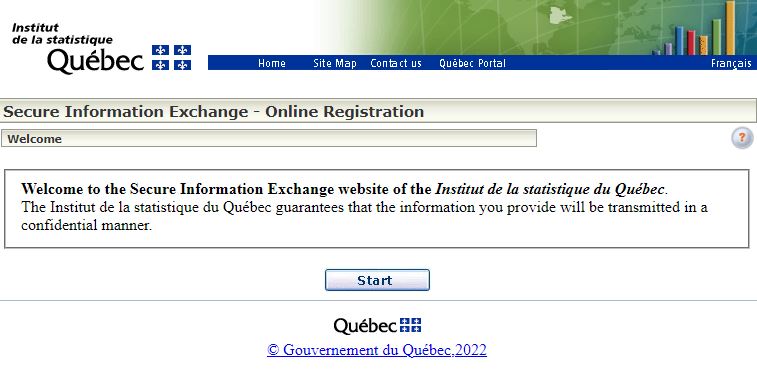
Click Start to go to the next step.
Step 1.1 – Identification of respondent
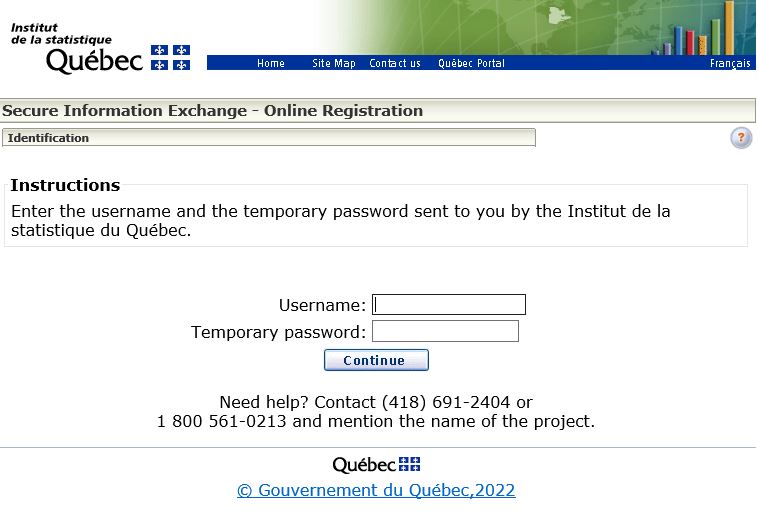
– Enter your username and temporary password.
– Click Continue to go to the next step.
Step 1.2 - Personal Information
Please note that all information requested in this step must be provided. Enter your exact e-mail address in the E-mail field, as it will be used to communicate with you.

– Enter your first and last name, the name of your company or organization and your e-mail address.
– Click Continue to go to the next step.
– Click Exit to cancel and go back to the start.
1.3 Step 3 - Creating a new password
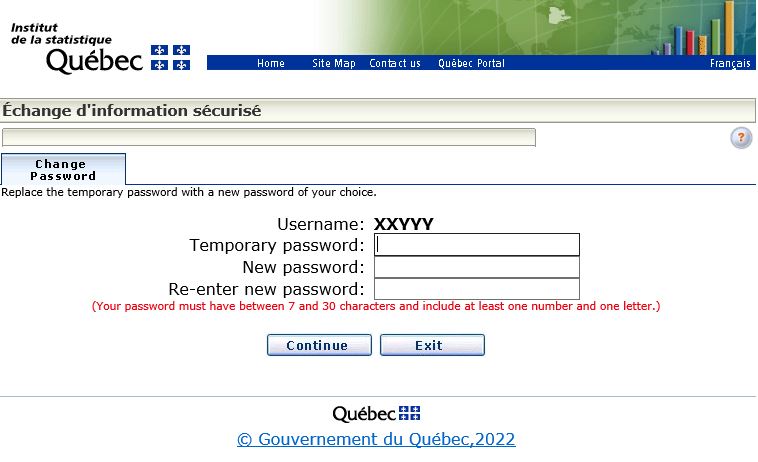
– Enter your temporary password, your new password, then re-enter your new password, which must have between 7 and 30 characters and include at least one number and one letter.
– Click Continue to go to the next step.
– Click Exit to cancel and go back to the start.
1.4 Step 4 – Document Download
The list of documents to be downloaded is shown in the window. Note that you can only download one document at a time.
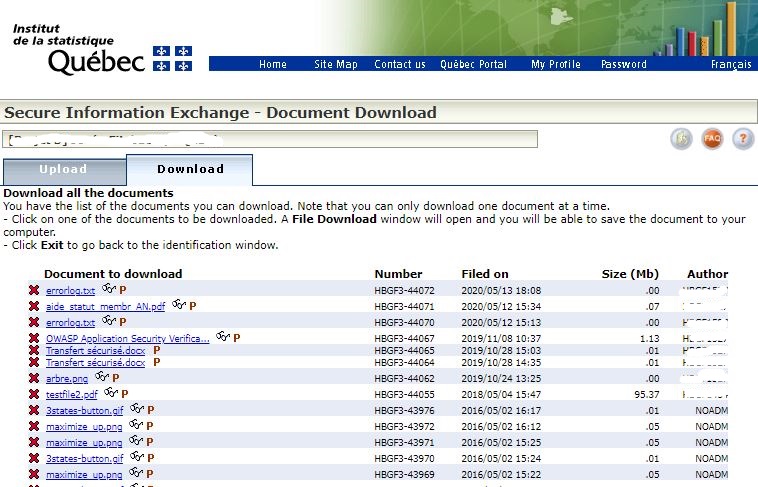
– Documents are named as follows:
XXX999YYYAAAAMMJJ99999
Where:
XXX = Three alphanumeric characters indicating the survey group.
999 = Three digits indicating the survey number.
YYY = Three alphanumeric characters indicating the number or sequence (or both) of the form to be completed.
AAAAMMJJ = Eight digits indicating the year, month and day of the report. In the case of an annual survey, then MMJJ=0101.
99999 = Five digits indicating the file number.
Example of a document name information: CIE334F012004010112345
Meaning:
Ø CIE for Collecte d’information électronique (electronic information collection)
Ø Survey number: 334
Ø Form number, for example:
o F01 for Recovery
o F02 for Sorting centre
o F03 for Recycling
o F04 for Composting
o F05 for Disposal Sites
Ø 20040101 for the year, month and day of the annual survey report
Ø File number: 12345
Note that the name of the electronic document cannot be modified.
– Click on any of the documents to be downloaded. A File Download window will open. Select the directory you want to save the file to and save it.
– Repeat Step 4 to download the next document.
– Click Exit to cancel and go back to the start.
Online registration and document download
2 Document uplaod
This process allows users to send completed electronic document(s) to the Institut de la statistique du Québec in less than 30 minutes from the moment they sign in.
2.1 Step 1 - Identification
The following window will open when you click on the URL www.statistique.quebec/transfert_securise.htm
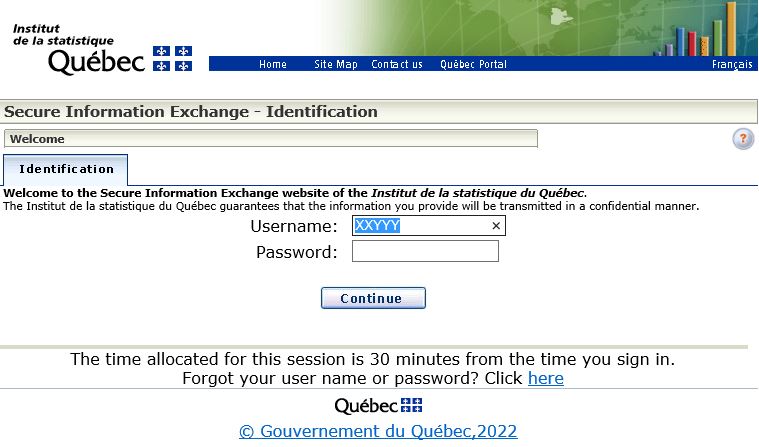
– Enter the username and password.
– Click Continue to go to the next step.
2.2 Step 2 - Document upload
You can only upload one document at a time.
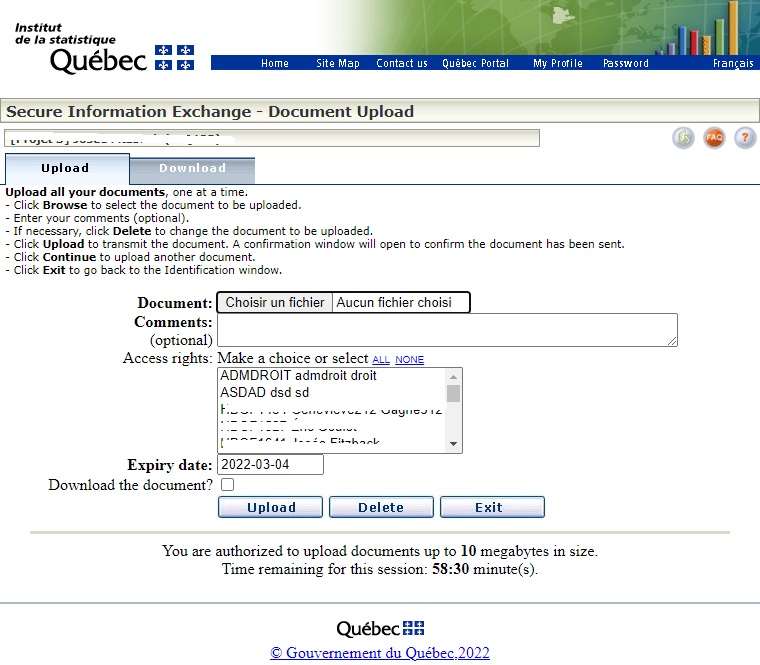
– Click Browse to select the completed document to be uploaded.
– Enter your comments (optional).
– Click Delete to delete the contents of the window.
Or
– Click Upload to transmit the completed document. A confirmation window will open to confirm that the document has been sent.
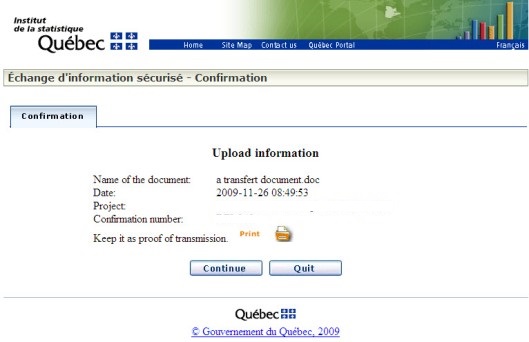
– Click Continue to upload another document.
– Click Exit to go back to the Identification window.
Online registration and document download

